
Teaching


Interactive Design Lab 1

Student: Tate Ridenour

Lexicon app
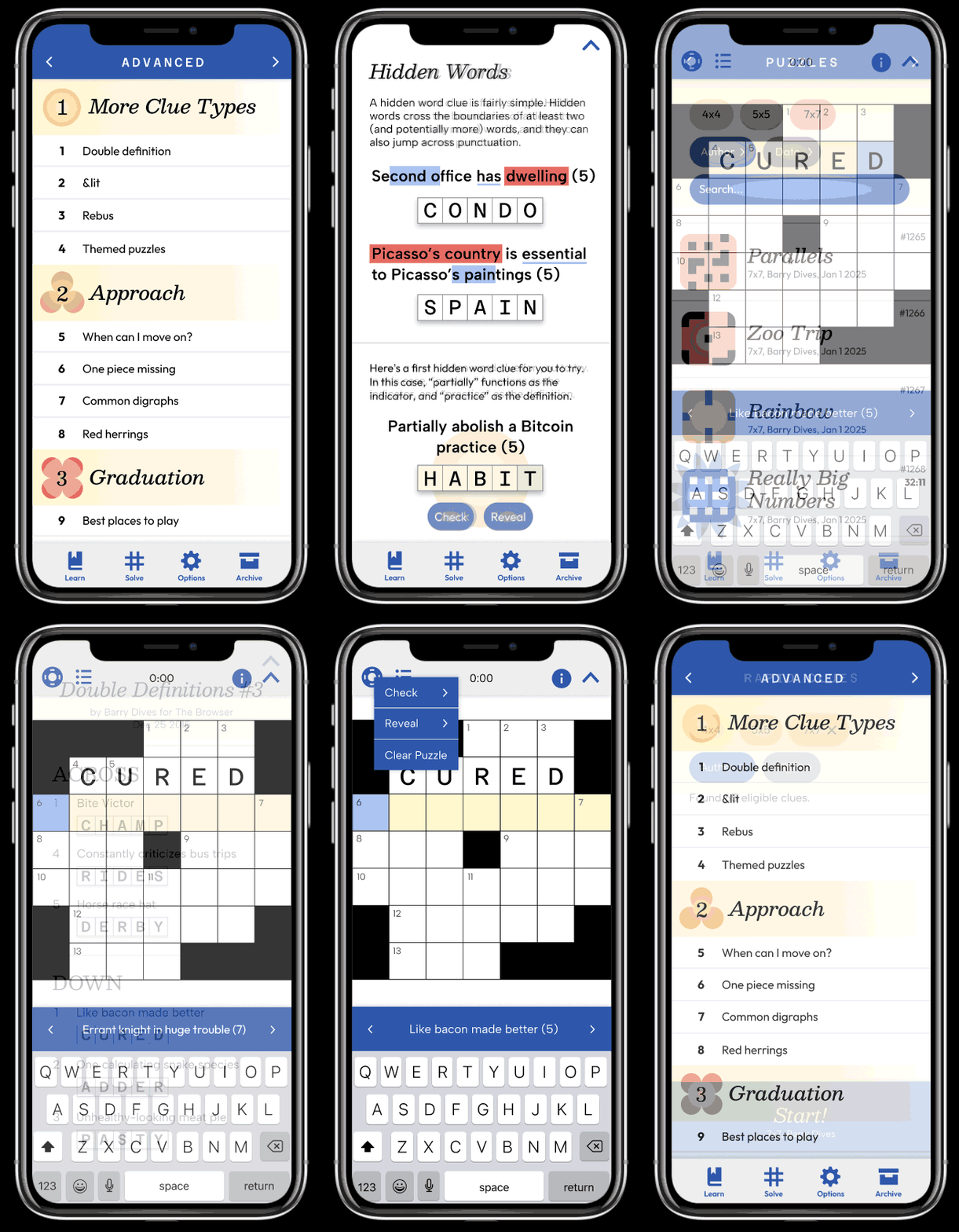
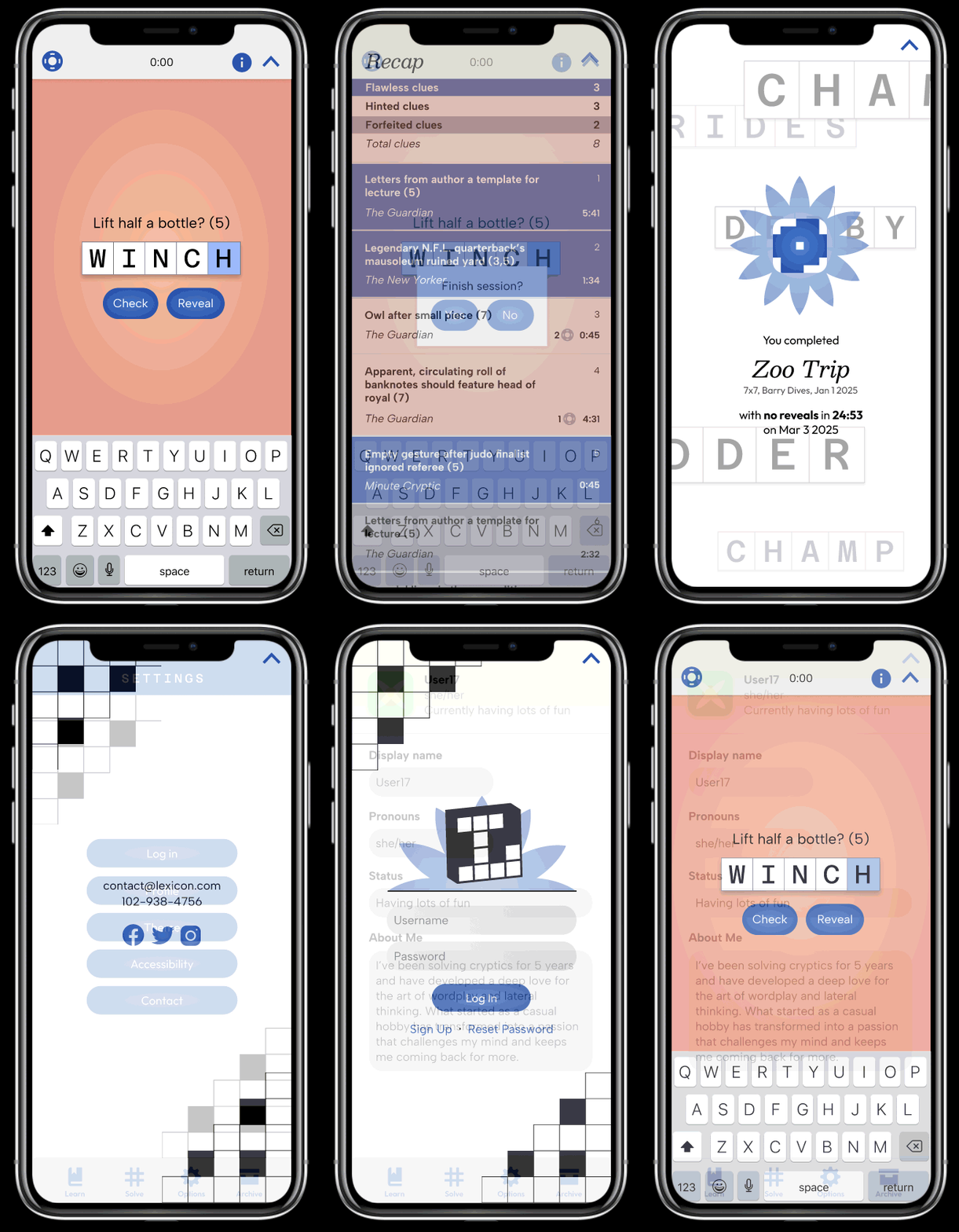
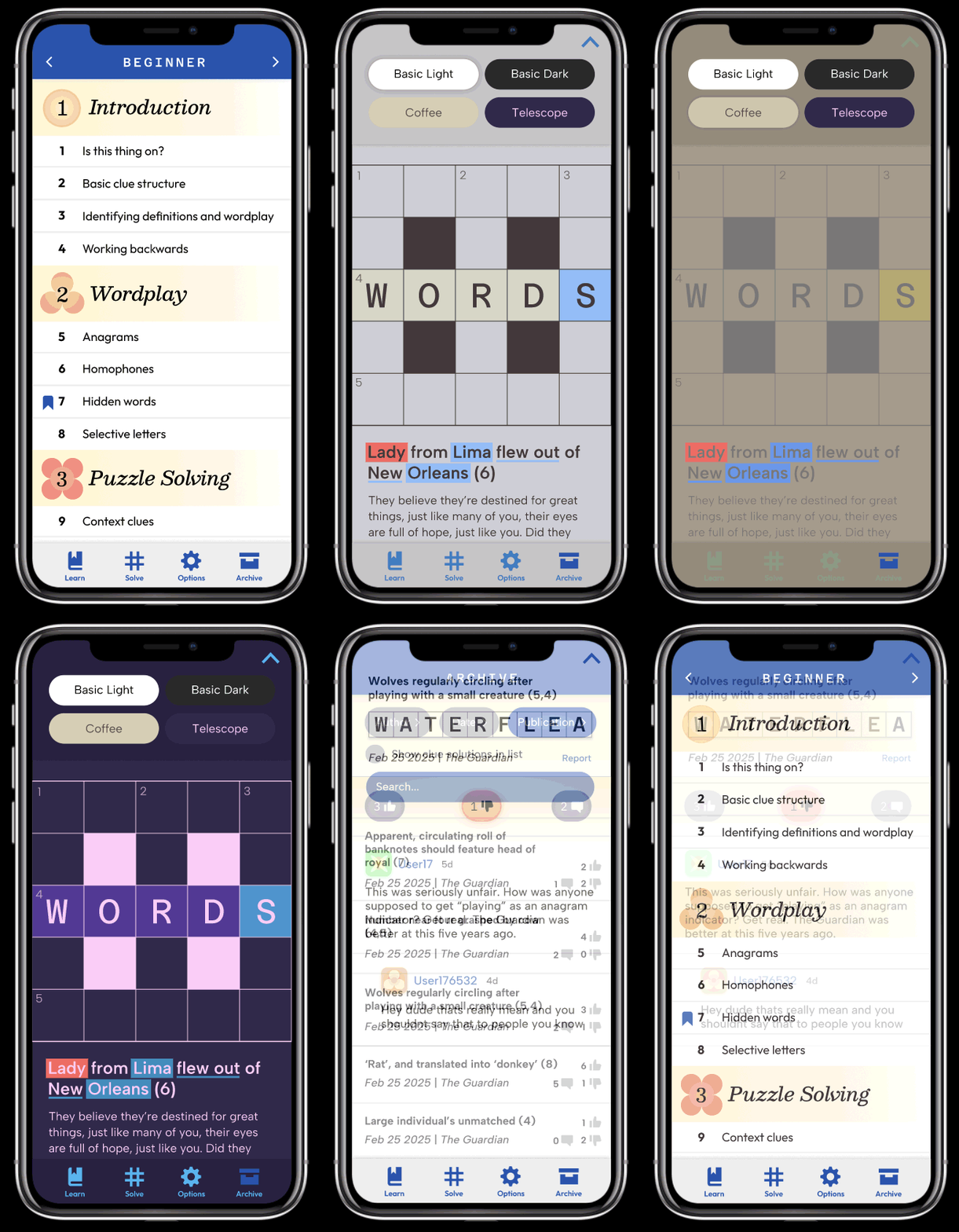
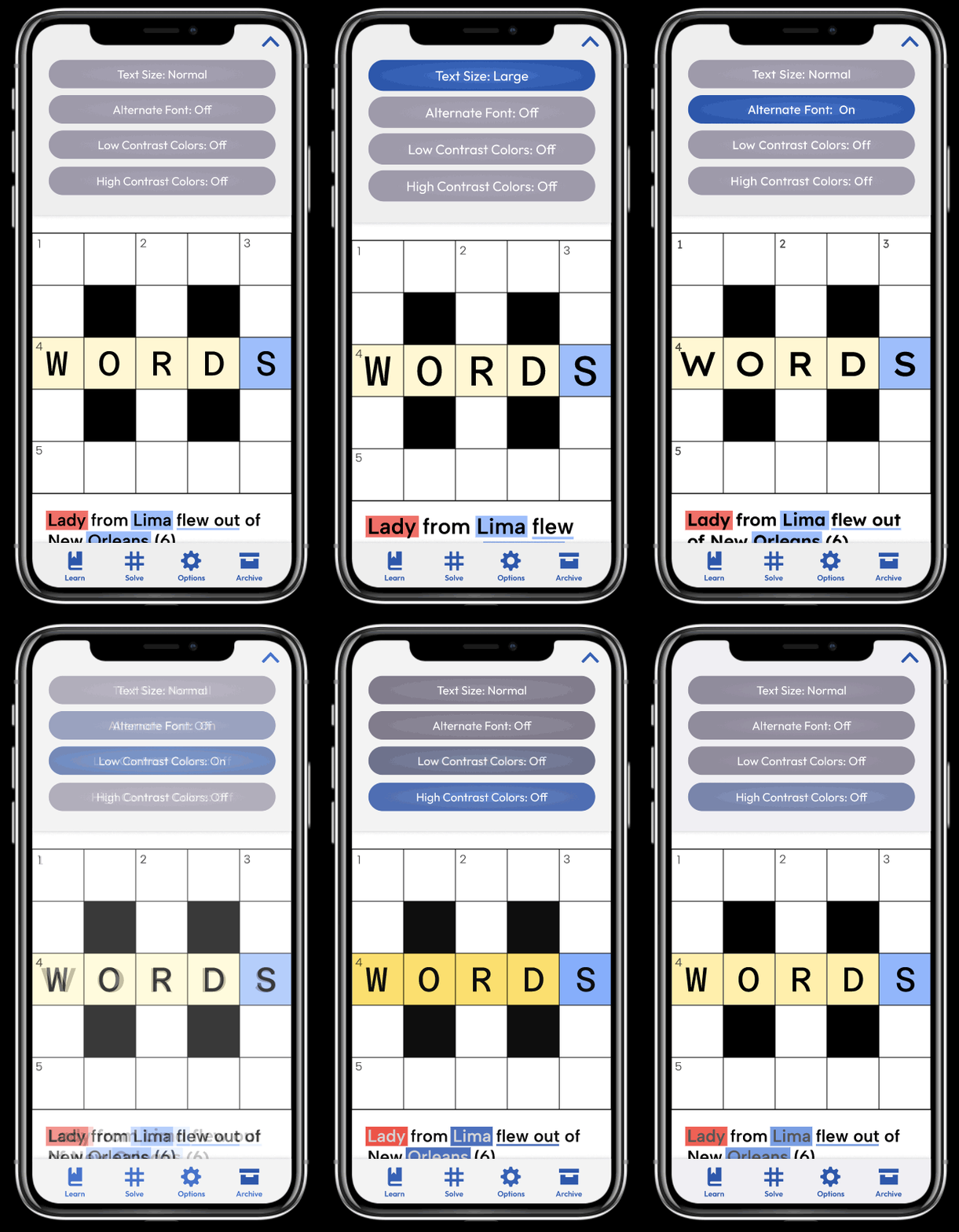
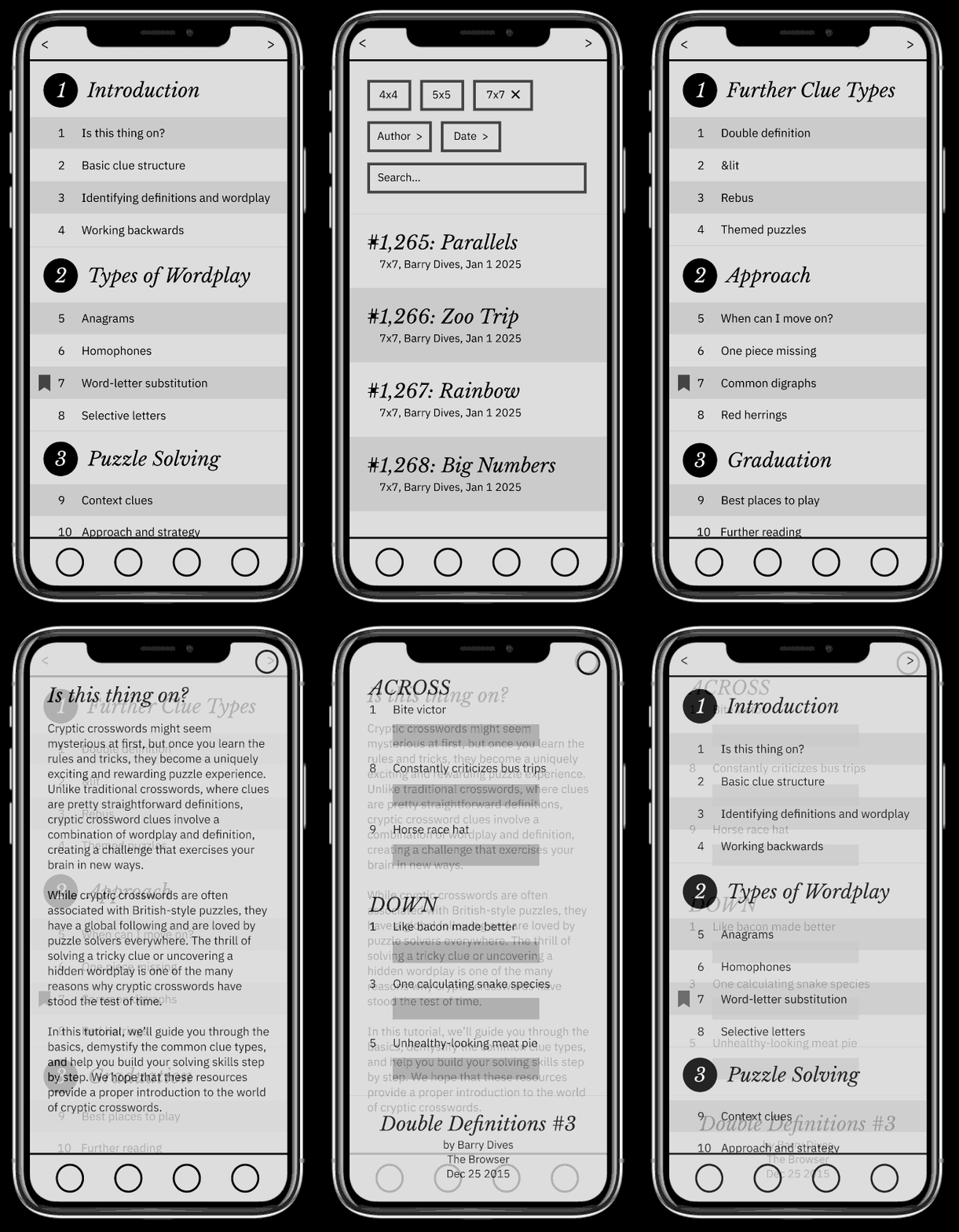
My app, Lexicon, is an app aimed at newcomers to the cryptic crossword genre of puzzle. Cryptic crosswords are a subgenre of crosswords focused on esoteric wordplay. I’m aiming to overcome the sizable barrier to entry through beginner-friendly resources like tutorials and mini puzzles. The app will be made for use on-the-go and will serve a similar function to the puzzles on Chess.com or the New York Times Mini.
 

UX/UI app design
UX/UI app design
UX/UI app design
UX/UI app design
UX/UI app design
UX/UI app design


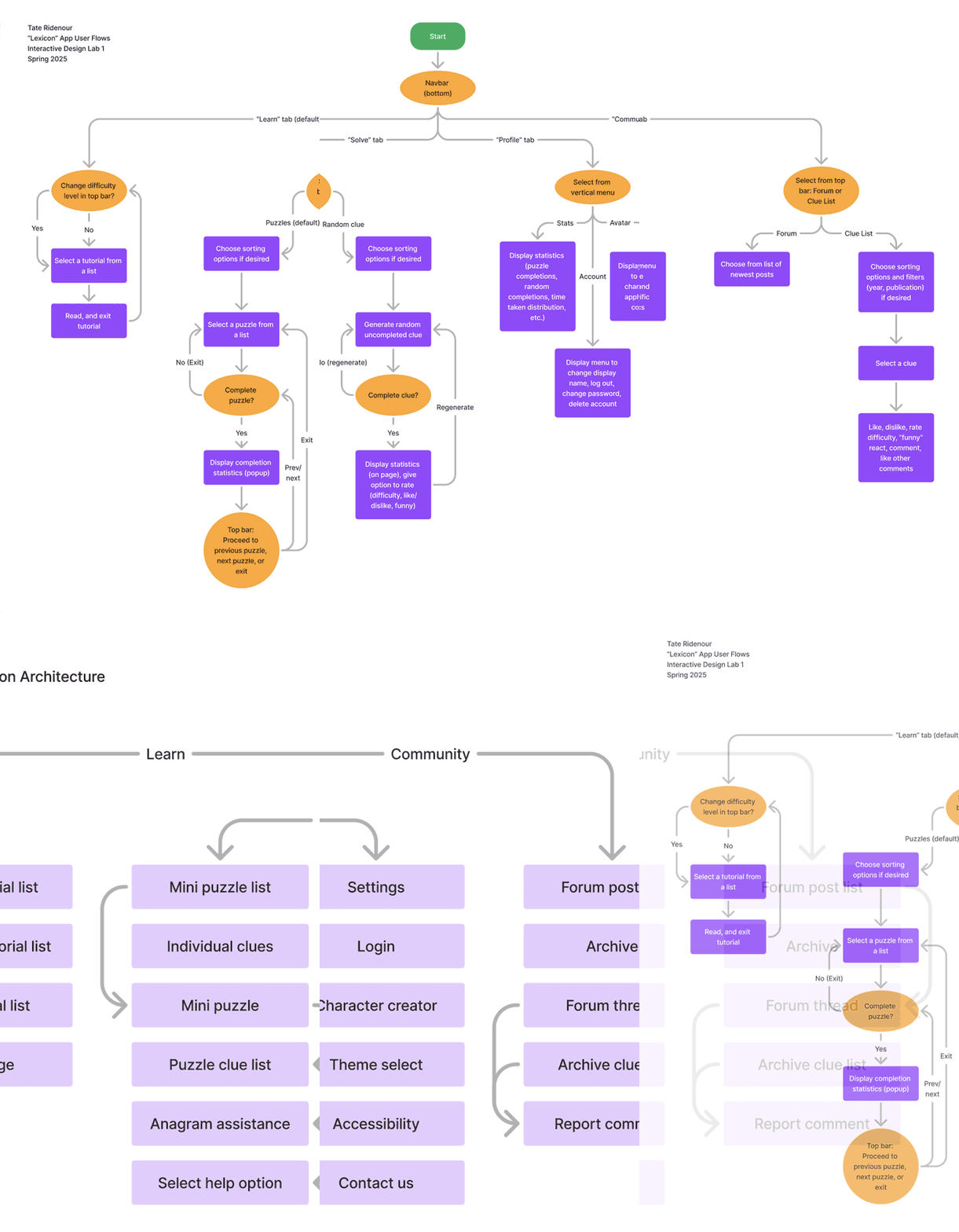
User Scenarios

1. Stephen, age: 45
Bio: Stephen is an office worker whose coworkers have recently begun completing a weekly cryptic crossword. He wants to socialize with them over a shared activity, but finds the barrier to entry difficult to overcome.
Goals and Needs: Stephen mainly uses the app in crowded, noisy places to kill time.
Story: "As an office worker with a hectic schedule, I want a clear, direct, and relaxing experience to avoid frustration."
Main task: Read tutorials on the most common patterns. Given that Stephen already has the app installed and is logged in:

  1. Select the “Learn” icon from the bottom bar.
  2. Select “Beginner” from the top bar.
  3. Scroll to the next uncompleted tutorial.
  4. Tap the tutorial to begin.
  5. Scroll through and read the text.

2. Johnny, age: 20
Bio: Johnny is a college student who has found himself with more free time this semester. He discovered cryptic crosswords through YouTube and, having experience from online chess, wants to improve as quickly as possible.
Goals and Needs: Johnny uses the app in quiet places and often late at night.
Story: "I want an efficient, streamlined experience with no frills."

Main Task: Complete five mini puzzles. Given that Johnny already has the app installed and is logged in:

  1. Select the “Puzzles” icon from the bottom bar.
  2. Select the desired difficulty from the top bar.
  3. The menu is pre-scrolled to the first unfinished puzzle. Tap the puzzle to select it.
  4. Once finished, tap the right arrow on the top bar to continue. The top bar also displays the puzzle number. The left and right arrows will display a checkmark if that puzzle has been completed.

3. Brenda, age: 55
Bio: Brenda is an experienced cryptic crossword player who heard the app has a history of cryptic crossword clues with likes and a comment section.
Goals and Needs: Being a one-time user, Brenda requires intuitive design to guide her to her desired feature.
Story: "I’m not planning on using this app again, but it sounded like a nice trip down memory lane."

Main Task: Find the top rated clues. Given that Brenda already has the app installed and is logged in:

  1. Select the “Community” icon from the bottom bar.
  2. Scroll down to the “Clue archive” page.
  3. Tap the sort dropdown and select “Top” from the hamburger menu.
  4. Tap the reaction dropdown and select “Funny” from the hamburger menu.
  5. Tap the time filter dropdown and select “All time” from the hamburger menu.
  6. A list of clues and solutions will appear. Tap one of the presented clues to see a timestamp and a comment section.